How to Undo a WordPress Plugin Update That Broke Your Site
A plugin update broke your WordPress site? Here's how to undo it from the Webivus chat, what you'll lose, and 8 tips to use Restore well.
On this page
- What you need
- Step 1: Ask Webivus for the update
- Step 2: Check your site straight away
- Step 3: Click Restore under the reply
- Step 4: Read what you'd lose, then confirm
- Step 5: Let Webivus put it back
- Step 6: Check again, and undo the restore if you need to
- 8 tips to use Restore effectively
- Restore vs WP Rollback vs a full backup
- Didn't update through Webivus?
- When Restore can't help
- Frequently asked questions
- How do I roll back a WordPress plugin to the previous version?
- Can I undo a plugin update after 24 hours?
- Will restoring remove orders or posts?
- Does Restore work for theme updates?
- I updated several plugins at once. Can I restore just one?
- Does clicking Restore use credits?
- What if the restore makes things worse?
Works with the Webivus plugin 1.3.0 and newer.
Quick answer: to undo a WordPress plugin update in Webivus, click Restore under the chat reply that made the update, read the list of anything you'd lose, and confirm. Webivus puts the plugin and your site's data back to how they were right before the update, then checks that your site loads. The Restore button works for 24 hours, on the latest change in that chat.
Below is the full walkthrough, eight tips for using Restore well, and what to do when the update wasn't made through Webivus.
What you need
- A Webivus account. Restore is included on every plan, Free too, for a limited time.
- The Webivus plugin 1.3.0 or newer on your site (get it on WordPress.org).
- An update made through Webivus. That's what saves the restore point. If you updated in wp-admin, see "Didn't update through Webivus?" further down.
Step 1: Ask Webivus for the update
Open the chat for your site and ask for the change in plain words, for example "Update WooCommerce to the latest version." Before it touches the plugin, Webivus saves a restore point. That adds a few seconds to the update. You don't need to set anything up.
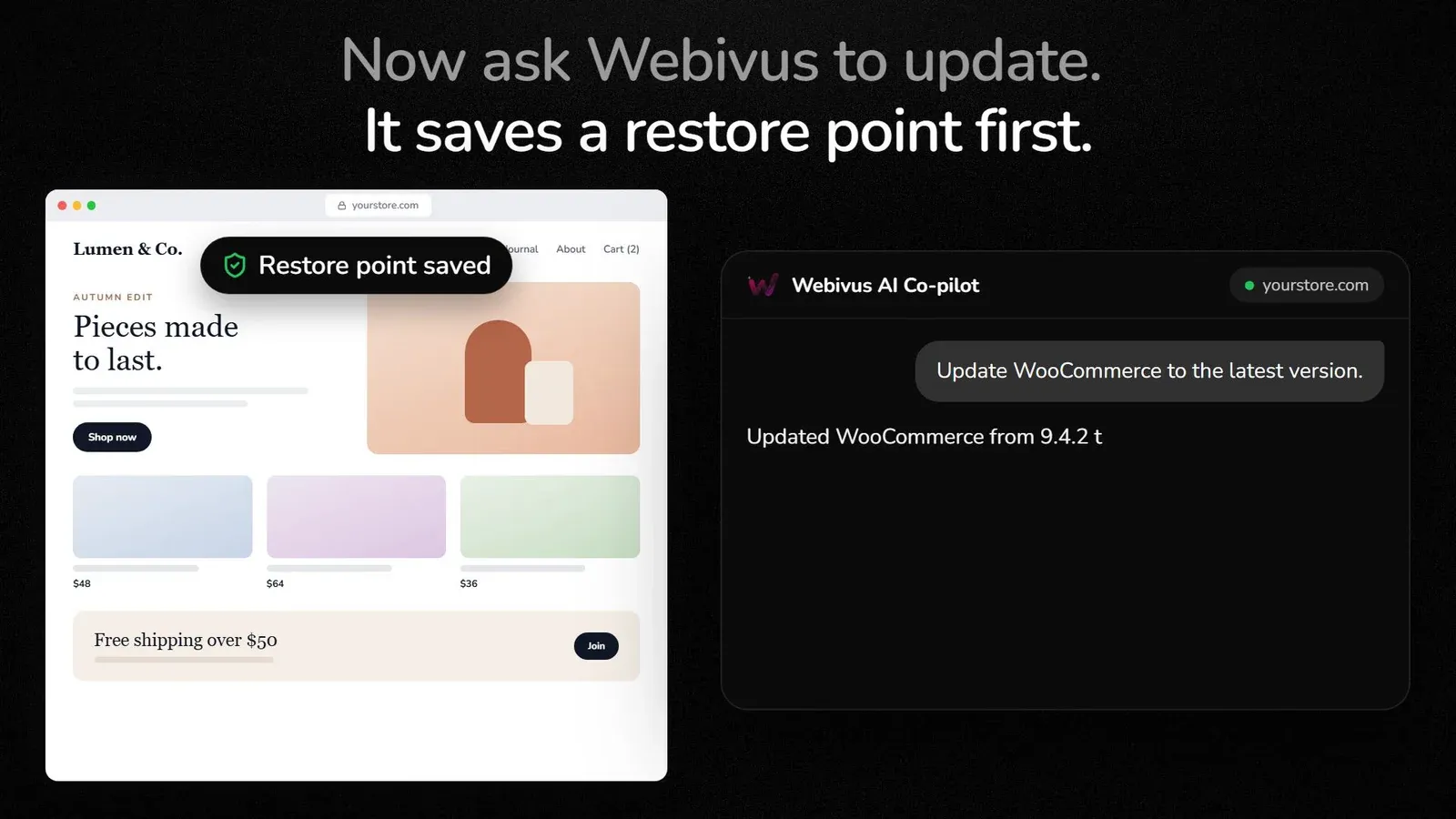
If Webivus can't save a restore point (for example, because the plugin on your site is older than 1.3.0), it won't run the update straight away. You'll see "I couldn't take a safety backup first" with Try again and Continue anyway. Continue anyway runs the update without a restore point, so there will be nothing to restore later.
Step 2: Check your site straight away
Open your site in a new tab and check the pages that matter most:
- the home page and a normal page or post
- for a store, a product page, the cart and the checkout
- your contact or booking form
- wp-admin, to see that it still loads
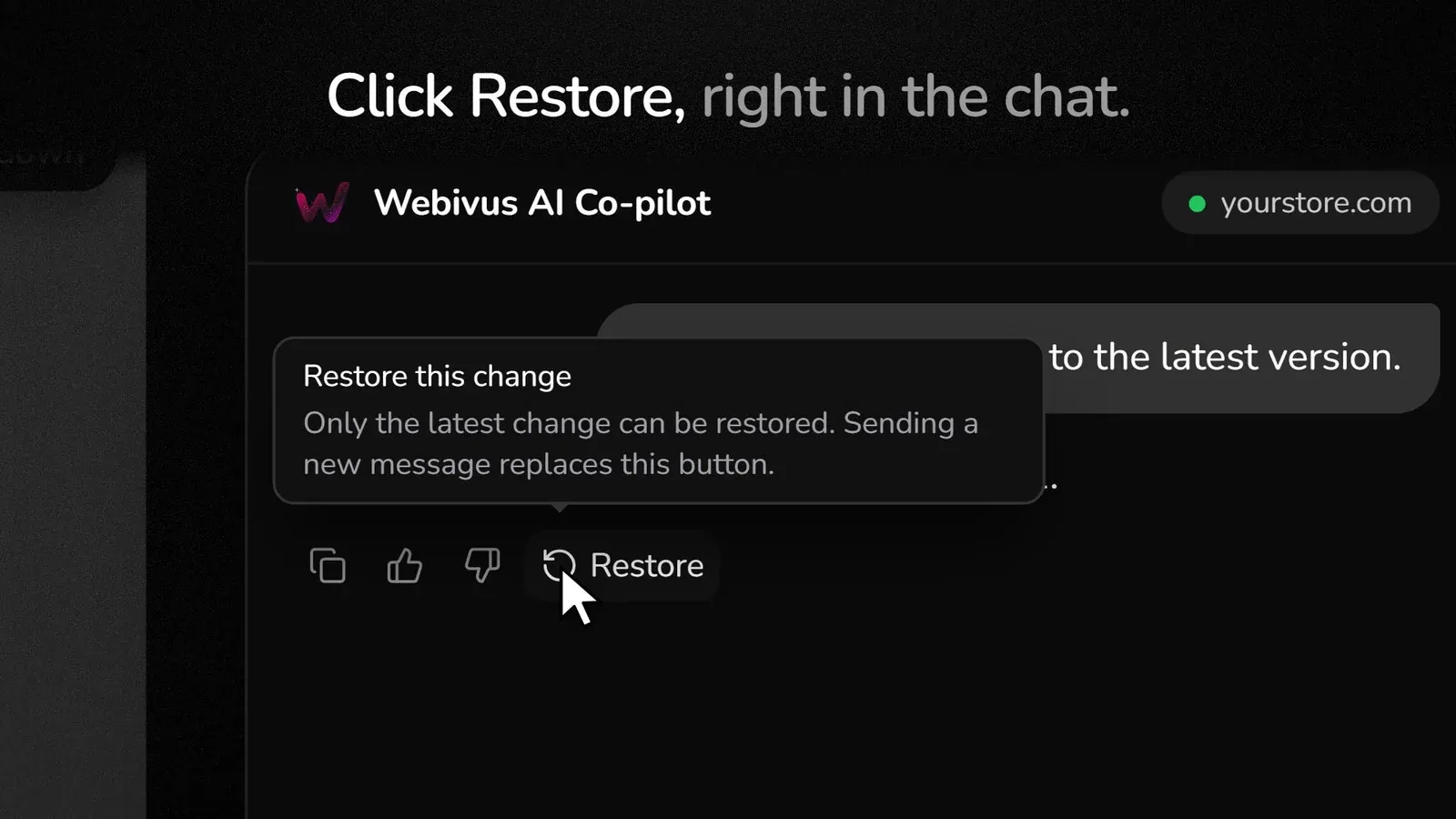
Do this before you send another message in the same chat. Only the latest reply in a conversation can be restored.
Step 3: Click Restore under the reply
Something's wrong? Go back to the chat. Under the reply that made the update, next to the copy and feedback buttons, click Restore.
Step 4: Read what you'd lose, then confirm
Webivus first checks what has changed on your site since the restore point. If restoring would undo anything, such as new orders, new customer accounts, posts or comments, it lists them under Before you restore.
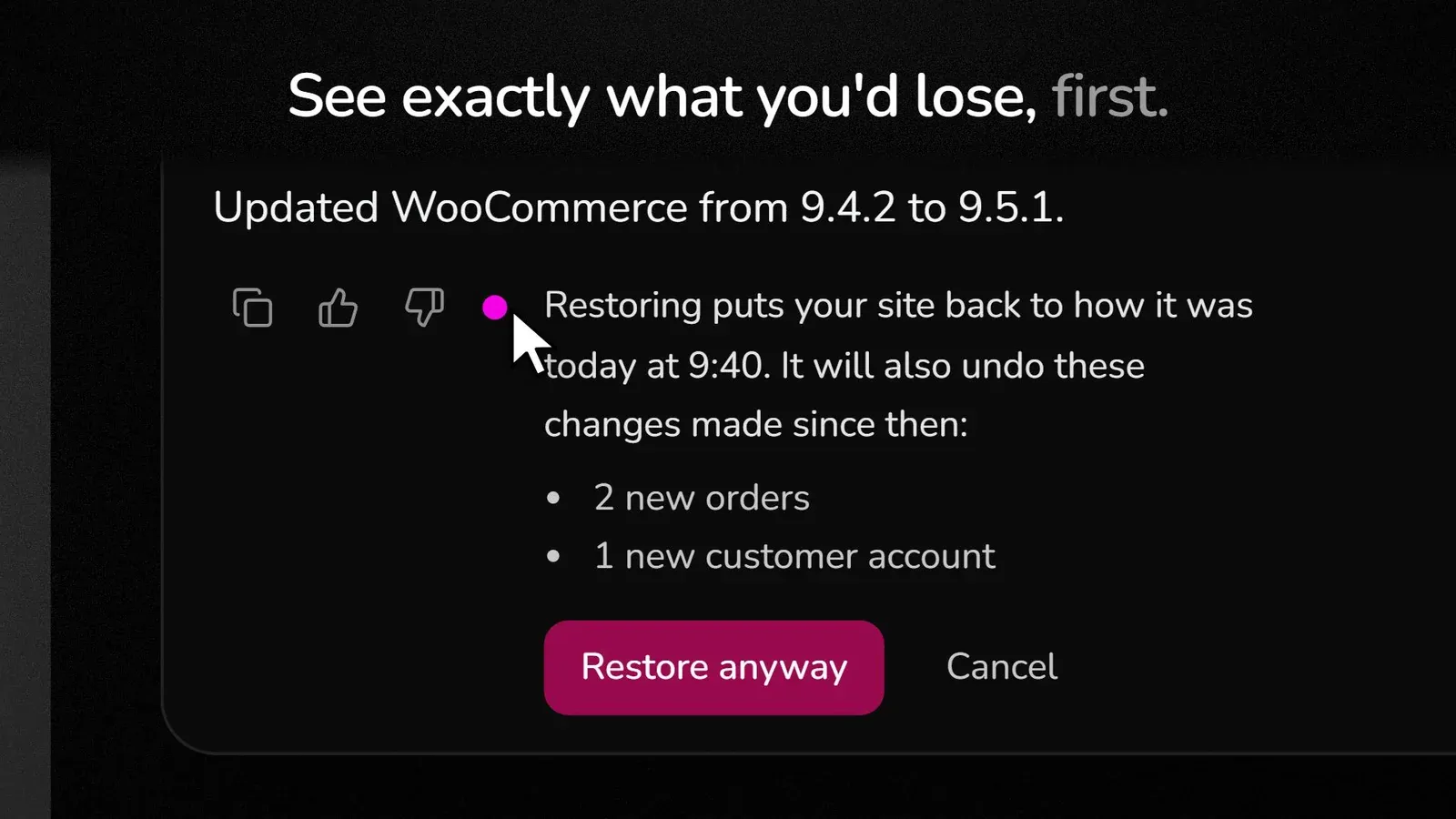
- Click Restore anyway to go ahead, or Cancel to keep things as they are.
- If nothing would be lost, there's no list. You just confirm the restore.
Step 5: Let Webivus put it back
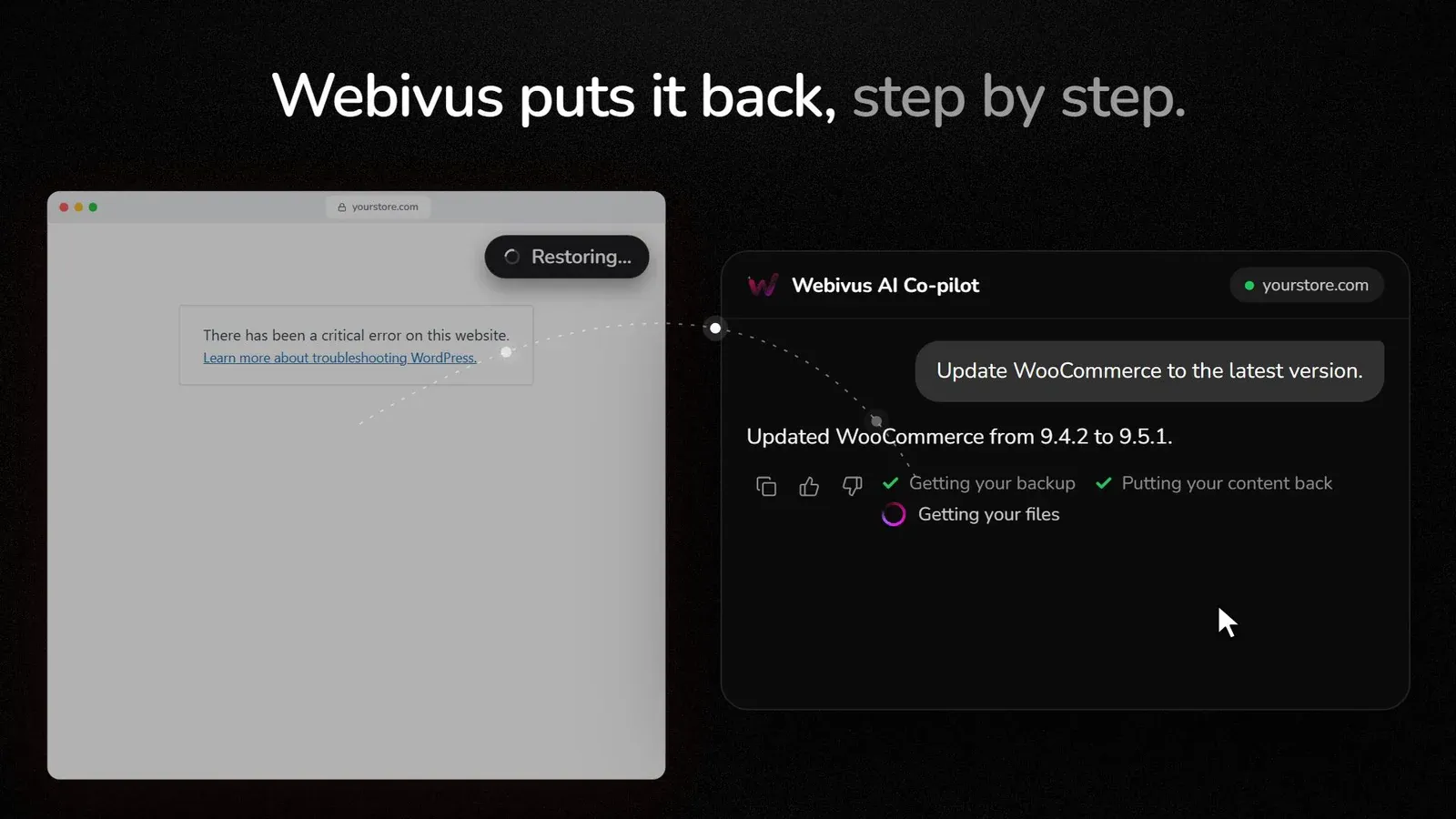
The restore runs step by step in the chat. It usually takes about a minute, longer on large sites. When it finishes, Webivus checks that your site responds properly. If it still doesn't, Webivus tells you, so you can decide what to do next.
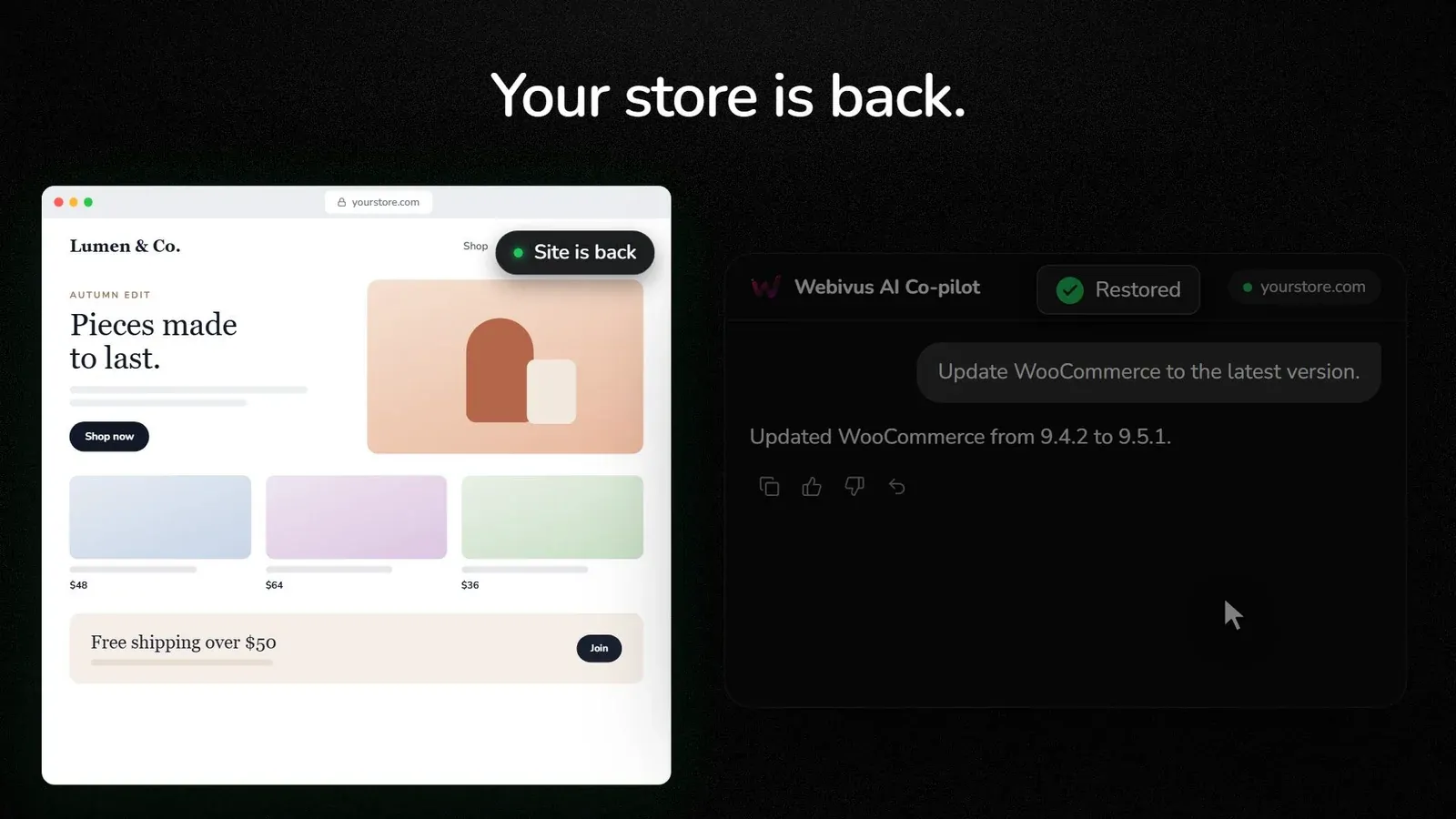
Step 6: Check again, and undo the restore if you need to
Open your site again. If the restore didn't help, for example because the problem came from somewhere else, you can click Undo this restore. It puts your site back to how it was before you restored. You have 24 hours.
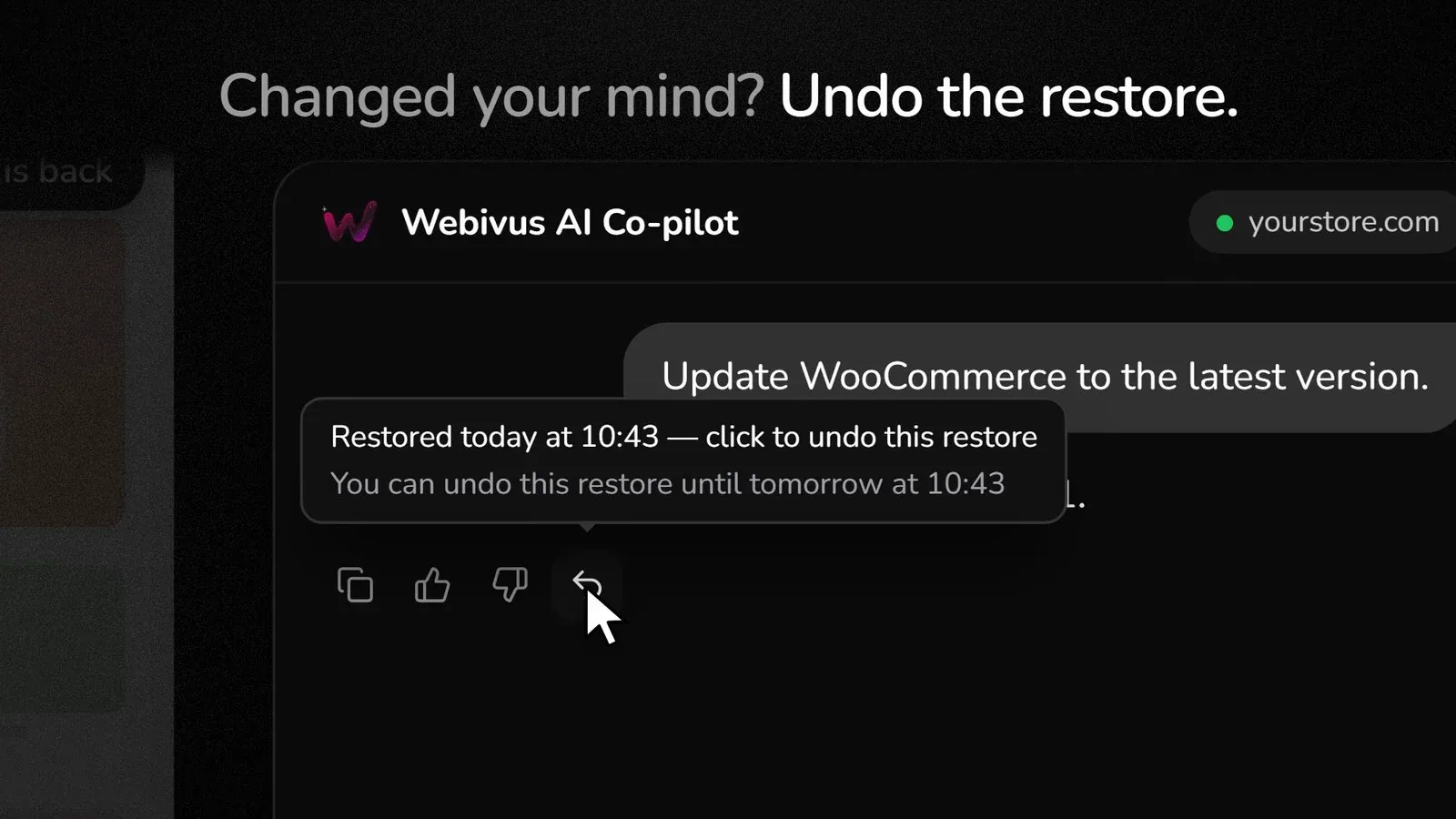
8 tips to use Restore effectively
- Update one plugin per message. When several plugins are updated in one go, one restore point covers all of them, so Restore puts all of them back. One plugin per message means you can undo just the one that caused trouble.
- Check your site before you keep chatting. Sending a new message in the same chat removes the Restore button from the earlier reply.
- Start a new chat for other work. Need to do something else first? Do it in a new chat. The Restore button stays on the original reply for 24 hours.
- Update stores at quiet times. Fewer orders between the update and a restore means fewer orders a restore would remove.
- Note anything on the "Before you restore" list. If an order or a customer account is listed, save its details before you click Restore anyway, so you can follow up.
- Keep the Webivus plugin up to date. Restore points need plugin 1.3.0 or newer. If you see "I couldn't take a safety backup first", choose Try again before Continue anyway.
- Don't repeat the same update straight away. After a restore, wait for the plugin author to ship a fix, then ask Webivus to update again. A new restore point is saved each time.
- Keep a real backup too. Restore covers the latest change Webivus made. A full backup from your host or a backup plugin covers everything else.
Restore vs WP Rollback vs a full backup
There's more than one way to roll back a WordPress plugin update. Here's how they compare:
| Webivus Restore | WP Rollback plugin | Full backup restore | |
|---|---|---|---|
| What goes back | The plugin or theme files and your site's data, to right before the update | The plugin's files only. Database changes made by the update stay | Your whole site, to when the backup ran |
| What you can lose | Changes made after the update, listed before you confirm | Nothing, but an older plugin can clash with a database the update already upgraded | Everything since the backup |
| Works for | Changes Webivus made, within 24 hours | Plugins and themes from WordPress.org | Anything the backup covers |
| Can you undo it? | Yes, for 24 hours | Update the plugin again | Usually not |
Didn't update through Webivus?
Restore only covers changes Webivus made, because that's when the restore point is saved. If the plugin was updated in wp-admin, by WordPress automatic updates or by your host, you have three options:
- Roll back just the plugin with the free WP Rollback plugin, if the plugin comes from WordPress.org.
- Restore a backup from your host or backup plugin. You'll lose any changes made since that backup ran.
- Switch the plugin off without wp-admin by renaming its folder in
wp-content/plugins/with your host's file manager or FTP (for examplewoocommercetowoocommerce-off). WordPress deactivates it, and you can sign in again.
Next time, ask Webivus to run the update. You'll get a restore point and a one-button way back.
When Restore can't help
- More than 24 hours have passed, or you've sent a newer message in that chat.
- WordPress can't load at all. Restore runs through the Webivus plugin on your site, so WordPress has to be able to start. If an update breaks a page, your checkout or the layout, Restore can put it back. If even wp-admin shows the critical error, use the folder-rename step above or your host's backup.
Frequently asked questions
How do I roll back a WordPress plugin to the previous version?
If Webivus made the update, click Restore under the chat reply that made it. Otherwise, use the WP Rollback plugin for WordPress.org plugins, or restore a backup.
Can I undo a plugin update after 24 hours?
Not with the Restore button. It's available for 24 hours after the change, on the latest reply in that chat. After that, use a backup.
Will restoring remove orders or posts?
It removes anything added after the restore point, such as new orders, customer accounts, posts or comments. Webivus lists them before you confirm, so you can cancel or save their details first.
Does Restore work for theme updates?
Yes. Updating, installing or removing a theme through Webivus saves a restore point too.
I updated several plugins at once. Can I restore just one?
No. One restore point covers the whole update, so Restore puts all of those plugins back. Update one plugin per message if you want to undo them separately.
Does clicking Restore use credits?
No. The update itself is a normal chat message. Restoring is free.
What if the restore makes things worse?
Click Undo this restore within 24 hours and your site goes back to how it was before the restore.
Want the story behind the feature? Read the announcement: Introducing Restore: undo a bad WordPress update from the chat.
Run your WordPress sites without the fear of the Update button. Try Webivus free.