Connect WordPress to Claude: MCP vs No-Setup
WordPress 7.0 ships an AI Client and MCP Adapter so Claude can run your site. Here is the real setup, plus the no-config path if you are not a developer.
On this page
- What actually changed in WordPress
- MCP, without the jargon
- What you can actually ask it to do once it is connected
- The official route, step by step
- Good first requests
- What it looks like when it works
- Where the official route gets hard
- The no-setup alternative
- What neither option will do for you
- So which one
- FAQ
You can connect WordPress to Claude two ways: install the official WordPress MCP Adapter on your site and point Claude at it, or use a hosted service that already holds the connection and hands you a chat box. The first route is free, flexible, and costs you a developer afternoon. The second takes about two minutes and trades some control for that. Here is the honest version of both.
What actually changed in WordPress
WordPress 7.0 shipped on May 20, 2026 with three pieces that matter here: an AI Client, an Abilities API, and a Connectors hub for authenticating external AI providers (InfoQ). The Connectors hub registers three providers out of the box — OpenAI, Anthropic and Google — managed from a single settings screen instead of a different API-key field in every plugin. That is core WordPress deciding AI agents are a first-class audience rather than a plugin category.
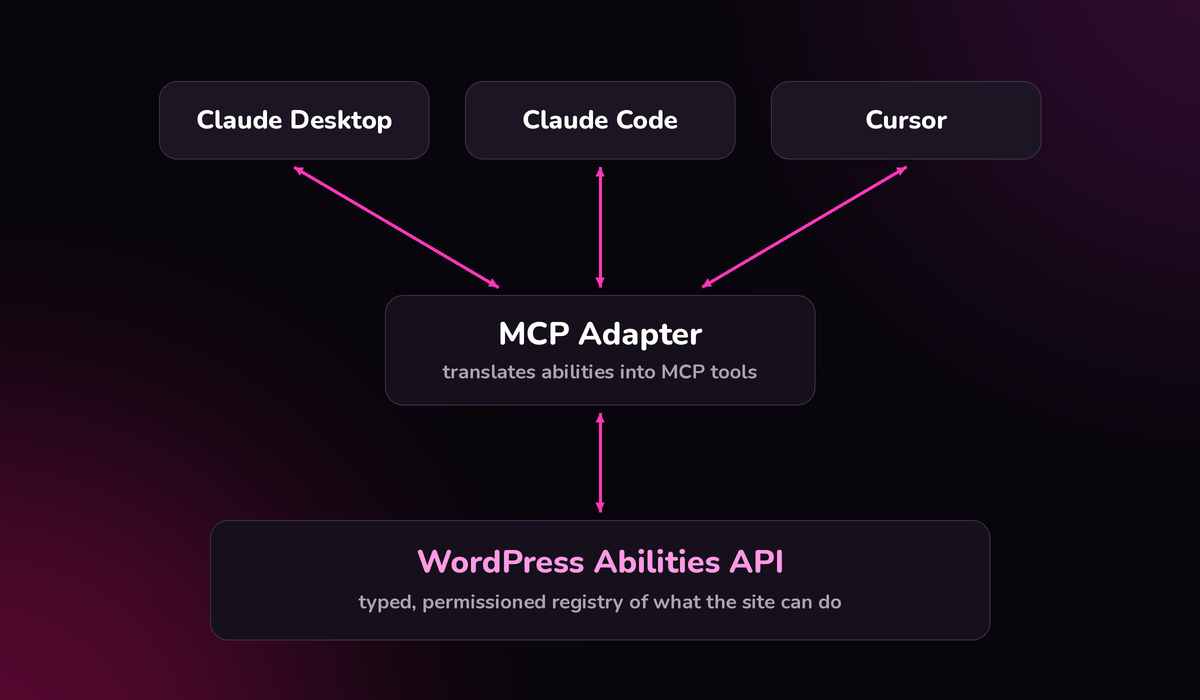
The groundwork landed in 6.9. The Abilities API is a standardized, discoverable, typed, executable registry of what a WordPress site can do (WordPress Developer Blog). Before it, letting an AI touch your site meant pointing it at the REST API and hoping it guessed the right endpoint. Now a plugin registers an ability the way it registers a shortcode: a name, a schema for its inputs and outputs, and a permission callback. An agent can list every ability on the site and call the ones it is allowed to call.
That is the real unlock. Not the chat window. The typed, permissioned inventory underneath it.
MCP, without the jargon
Model Context Protocol is a shared plug shape. Claude Desktop, Claude Code, Cursor and VS Code all know how to speak it, so any system that exposes an MCP server becomes something they can inspect and operate. The official WordPress MCP Adapter implements that protocol at the site level, translating your registered Abilities into MCP tools that those clients can discover and call directly (WordPress Developer Blog).
Once that link exists, you stop describing what you want and start asking for it. Claude reads the tool list, picks one, fills in the arguments, and shows you the result.
Here is the catch, and it shows up early. Everything in that paragraph assumes you are willing to install an adapter on the site, mint a token, hand-edit a config file, and keep a client like Claude Desktop or Cursor running on your own machine. That is a good path and it is free. It is also developer setup, and no amount of enthusiasm changes that.
If you would rather not touch any of it, there is a shortcut. Webivus holds the connection for you. You go to webivus.com, connect your WordPress site once, and manage it from that one dashboard. There is no Claude Desktop to install and no JSON to edit, and you do not even need to open wp-admin, because the work happens in the same place you type the request. More on how that works, and where it stops, further down.
What you can actually ask it to do once it is connected
Fair question at that point: connected to what end? Roughly most of wp-admin, reachable by sentence. Grouped so it reads fast:
Content. Posts, pages, media, comments, categories, tags, menus. New posts and pages save as drafts with proper SEO structure, so nothing publishes behind your back, and an edit reads the existing content first and merges your change in rather than overwriting the page.
Plugins. Search the WordPress.org directory, install, activate, deactivate, delete, check what needs updating, update one or a confirmed batch. It also scans every installed plugin for health: abandoned (no update in six months), pulled from the directory, or version-incompatible.
Themes. Install, switch, update, and read theme files, and it creates a child theme if you do not already have one.
Code, written safely. CSS goes to Additional CSS or the child theme; PHP and JS go to a code-snippets plugin or the child theme functions.php. It never edits parent theme or plugin files, so a future update cannot wipe your work.
WooCommerce. Products, orders, customers, coupons, reports, settings, system status. And before a WooCommerce update it compares your theme template overrides against the versions WooCommerce ships, then blocks the update if a revenue template like cart or checkout is stale.
Diagnostics. A full site audit across seven categories (plus WooCommerce when active) scored out of 100, a per-page SEO audit, page-builder detection across six builders (Elementor, Divi, Beaver Builder, WPBakery, Oxygen, Brizy), and a dependency check before you delete a page.
Error monitoring, always on. It captures PHP fatals, errors and warnings from your site, de-duplicates them, and alerts you on fatals, on a sudden spike, and on error types it has not seen before. Notices and deprecations are out of scope.
Research, settings, and more than one site. It searches the live web for current answers and reads a URL you paste, metered by plan (2 a day on Free, up to 100 on Agency). Settings cover general, writing, reading, discussion, media, permalinks with presets, and privacy. And one account runs several sites: 1 on Free, 2 Starter, 3 Individual, 5 on Pro expandable to 15, effectively unlimited on Agency.
In practice that means typing "update all my plugins", "which of my plugins are abandoned?", "add a FAQ section to my About page", "add my Google Analytics tag", "is it safe to update WooCommerce?", or "why is my site throwing errors?" and reading what comes back.
The combination is the point, not any one item. It finds the problem, fixes it from the same chat, and has checks in the code that stop it breaking the site on the way through.
The official route is still worth understanding either way, so here it is in full.
The official route, step by step
For self-hosted WordPress the supported path is the WordPress MCP Adapter, part of the AI Building Blocks initiative. Roughly what it involves:
- Get your site to WordPress 6.9 or later. 7.0 is where the AI Client and Connectors hub live, so aim there.
- Install the MCP Adapter on the site and confirm which abilities are actually registered. One thing that trips people up: the adapter is not in the WordPress.org plugin directory — it is deliberately kept out of core, and you install it from the official GitHub releases page or via Composer. This is also the step people underestimate. Core registers a set of abilities; your plugins register more only if their authors have done the work.
- Create credentials. An application password or a token, scoped to a user whose capabilities decide what the agent can do. Give it an editor account and it can edit. Give it an administrator account and it can install plugins. Choose deliberately.
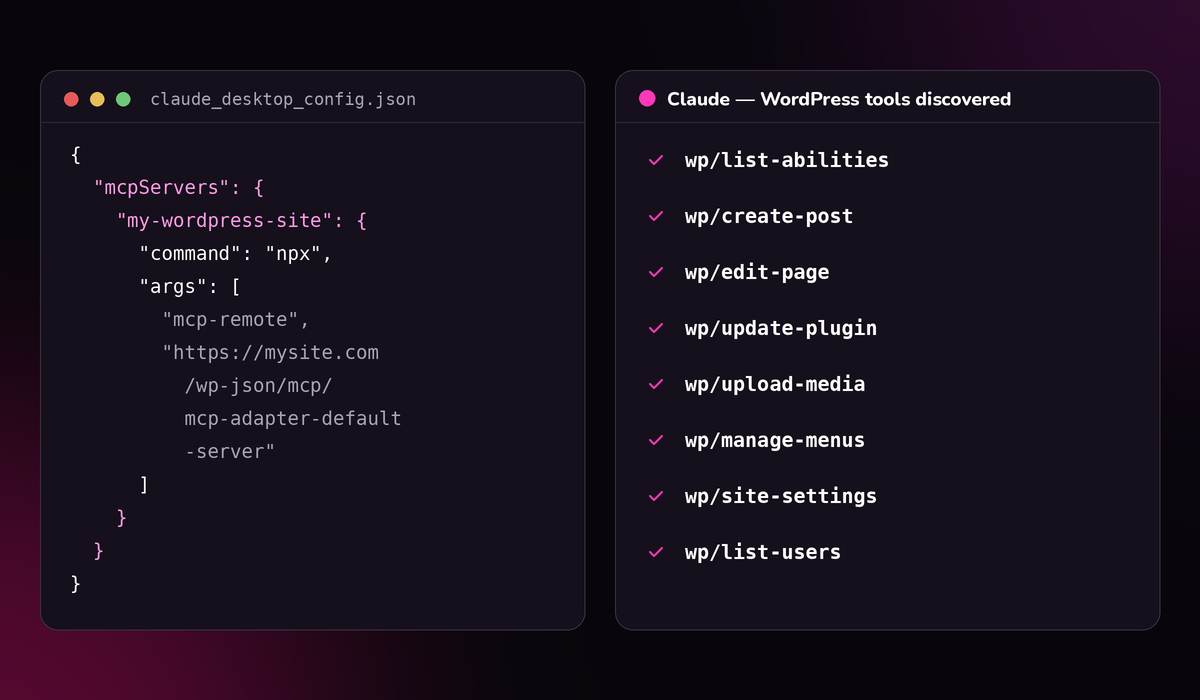
- Add the server to your client config. In Claude Desktop that is a JSON file. In Claude Code it is a command. Either way you are editing config by hand and restarting the app.
- Verify the handshake, then ask for something small and reversible. A draft post. Not a live page.
None of this is exotic if you have used a terminal. If you have not, step four is where the afternoon goes. It is also the step that does not exist on the hosted route: the Webivus plugin does the handshake itself, so there is no config file to edit and no client app to keep open.
Good first requests
Once the handshake works, resist the urge to test it on something that matters. Ask it to list the abilities it can see. Ask it to draft a post and leave it as a draft. Ask it to summarise your published categories. Every one of those is either read-only or trivially reversible, and they tell you fast whether the permission scope you chose is right. Save the plugin updates for after you have watched it behave.
The same rule applies on the hosted side. In Webivus the safest opening move is asking it to run a site audit, which only reads, and then asking for a draft post. You get to watch the confirmation questions before anything is written, which is the cheapest way to learn what you have actually given it.
What it looks like when it works
WordPress.com is the clearest preview, because its own MCP server has been running publicly for a while. It went read-only in October 2025 and full write in March 2026: agents now create posts, build pages, manage comments and taxonomies, and handle media through conversation, with human approval at every step (Automattic).
That last clause is the part worth copying. The approval gate is not friction, it is the product. An agent that edits your live site without asking is a liability no matter how good the model is.
Where the official route gets hard
I want to be fair here, because the MCP Adapter is genuinely good engineering and it is free. But it is developer-grade, and that shows up in specific places.
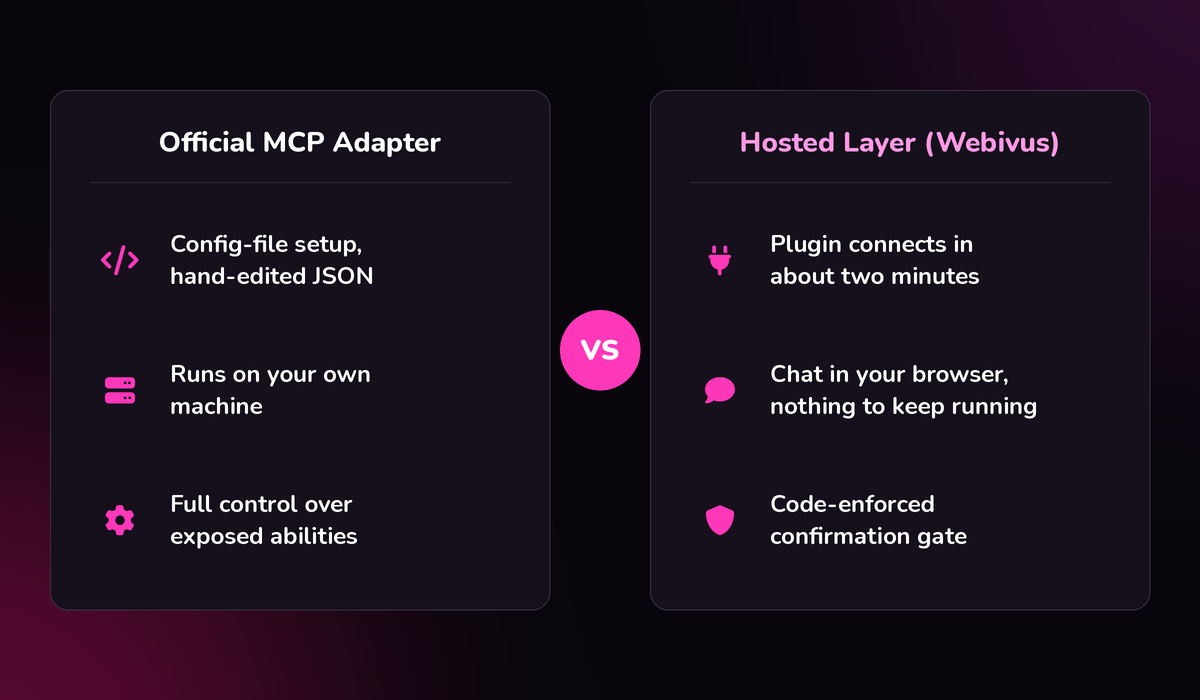
- Setup is config-file work. Hand-edited JSON, restarts, and error messages written for developers.
- Auth is your problem. You pick the user, the scope, and where the credential lives. Get it wrong and you have handed an agent more power than you meant to.
- Coverage depends on your plugins. The adapter can only expose abilities that exist. Plugins that have not adopted the Abilities API are invisible to it.
- It runs on your machine. Close the laptop and the connection is gone. Nothing runs on a schedule.
- The guardrails are whatever you build. Nothing stops an agent deleting the page your navigation menu points at, because nothing in the protocol knows that page is special.
If you write code, none of that is a dealbreaker. If you run a business on WordPress and have never opened a config file, all five of those are.
The no-setup alternative
Back to Webivus, properly this time. Same idea as the adapter, different starting point: you create an account, install the Webivus plugin from the WordPress.org plugin repository, activate it, and the site connects back on its own using a single-use code that expires in fifteen minutes. You never hand over an admin password, you never edit a config file, and the chat lives in your browser rather than in a desktop app you have to keep running.
What it does today, concretely: install, activate and update plugins and themes from the WordPress.org repository, update WordPress core, create and edit posts and pages as drafts by default, upload media, change settings and permalinks, run a full site audit, run a single-URL SEO audit, search the plugin repository, and do metered web research.
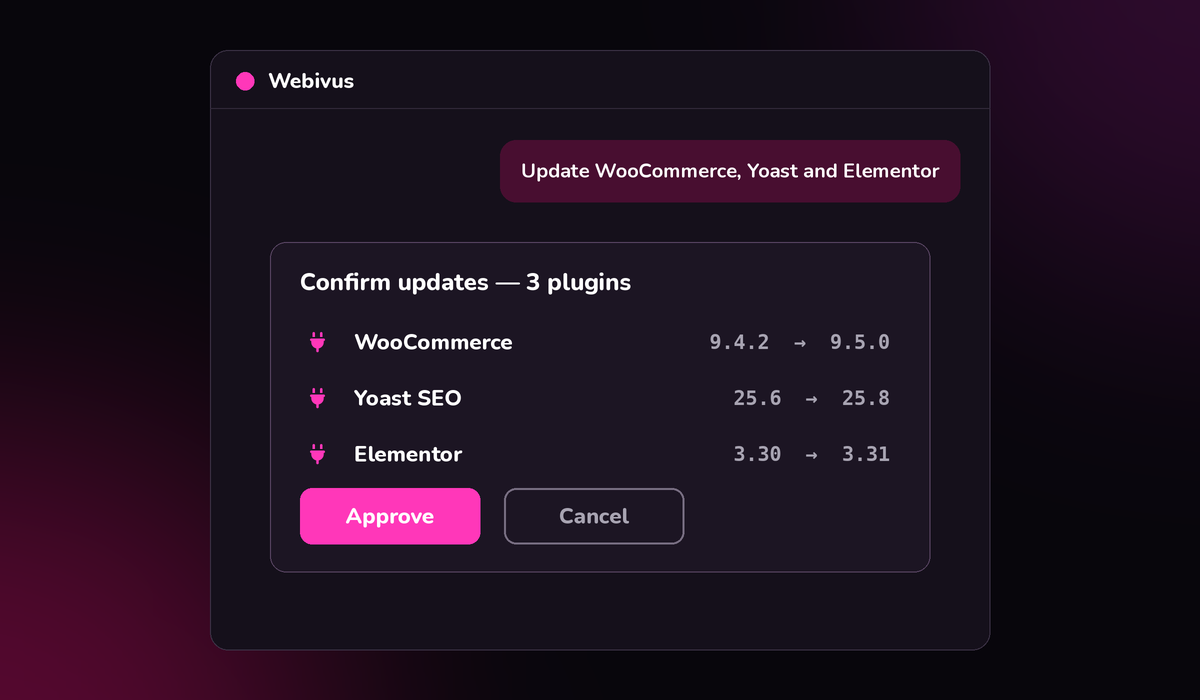
The guardrails are enforced in code, not in a prompt. It asks before any install, update, activation, deactivation or deletion. It hard-blocks deleting your homepage, your blog page, any page with child pages, any page linked in a navigation menu, and the WooCommerce Shop, Cart, Checkout and My Account pages. It blocks content writes that would destroy an existing page. And it refuses to deactivate its own plugin, which sounds like a joke until an agent locks itself out of a site.
That list is the real difference between the two routes, and it is worth sitting with. A model deciding not to delete your Checkout page because you asked it nicely in a system prompt is not a guarantee. A check in the code that refuses the call regardless of what the model decided is. The protocol layer does not care about your site structure. It cannot, because it has no idea which of your pages is load-bearing. Something above it has to know.
What neither option will do for you
Be clear-eyed about this. Webivus can roll back the agent's own actions, but it has no complete backups, no staging, and no restore points. A raw MCP connection has none of those either. So the sentence "it is safe because we can undo it" is not available on the MCP route, and with Webivus it applies to what the agent did — not to everything that can go wrong on a site. Take a backup before you let any agent touch a production site. Use whatever you already trust for that.
Webivus also does not scan for malware or known vulnerabilities, only installs from the WordPress.org repository (no premium ZIPs), does not design themes or layouts for you, and does not do migrations or hosting operations. If you need those, you need other tools alongside it.
So which one
Pick the official MCP Adapter if you are comfortable in a terminal, want maximum control over exactly which abilities are exposed, or are building something custom on top of the protocol. It is the more powerful ceiling and it costs nothing.
Pick a hosted layer if the interesting part of your day is not YAML. You want the plugin updated, the post drafted, the audit run, and you want a confirmation prompt standing between a casual request and a broken homepage. You also get three specialist agents, each trained for a different job: the Webivus SEO Agent if you want your SEO improved, the Webivus Admin Agent if you want complete admin control, and the Webivus Q/A Agent for question-and-answer work. The Auto Agent is selected by default, and all three are available depending on your Webivus plan.
Either way, the shift is real and it is not hype. WordPress now has a typed, permissioned map of itself, and AI clients know how to read it. The only open question is how much of the plumbing you want to own.
FAQ
Can Claude actually edit my WordPress site?
Yes. With the official WordPress MCP Adapter installed and connected, Claude Desktop or Claude Code can discover your site registered Abilities and call them, which includes write actions like creating posts. WordPress.com own MCP server went from read-only to full write in March 2026, with human approval required at each step. What Claude can do is bounded by the capabilities of the WordPress user whose credentials you connected.
Do I need WordPress 7.0 for this?
The Abilities API arrived in 6.9, so that is the practical floor. WordPress 7.0, released May 20, 2026, is where the AI Client and the Connectors hub for authenticating external AI providers live, so it is the version worth targeting.
Is it safe to let an AI agent manage my live site?
Only with two things in place: a real backup taken before you start, and an approval gate on destructive actions. The MCP Adapter provides no backup or undo. Webivus can roll back the agent's own actions, so there is an undo button for what the agent did. It also enforces confirmations before installs, updates, activations and deletions, and hard-blocks deleting structurally important pages — but that is prevention plus partial recovery, not a full safety net, so keep your own backups.
What is the difference between the WordPress MCP Adapter and Webivus?
The MCP Adapter is a protocol layer you install and configure yourself, then connect to an AI client on your own machine. It is free and maximally flexible. Webivus is a hosted service: you activate a plugin, the site connects itself with a single-use code, and you get a chat interface with code-enforced guardrails. Less control, far less setup.
Can it install premium plugins or restore a backup?
No on both counts for Webivus. Plugin and theme installs are limited to the WordPress.org repository, so no premium ZIP uploads. There are no complete backups — rollback covers the agent's own actions only. It also does not scan for malware or known vulnerabilities, build designs, or handle migrations and hosting.
Does connecting my site mean handing over my admin password?
It should not. With Webivus you install the plugin and it connects back automatically using a single-use code that expires in fifteen minutes, so no password changes hands. On the official MCP route you create a scoped application password rather than sharing your login, and you choose which WordPress user it belongs to.
Take a backup first, whatever you decide. Then, if you would rather skip the config files: go to webivus.com, create a free account, and install the Webivus plugin on your site. Activate it and the site connects itself with a single-use code in about two minutes, no admin password and nothing to configure. Your first move should be the site audit, which is free and read-only. It gives you a scored report of what is outdated, broken or slow, and you can reply in the same chat to fix the items you agree with. The free plan covers one site with a daily credit allowance and does not need a card.