Introducing Restore: Undo a Bad WordPress Update From the Chat
Webivus now saves a restore point before it changes a plugin or theme. If an update breaks something, click Restore in the chat.
On this page
- What is Restore in Webivus AI?
- How Restore works
- 1. Webivus saves a restore point before the change
- 2. Something looks wrong? Click Restore
- 3. See what you'd lose, before anything is rolled back
- 4. Webivus puts it back, step by step
- 5. Changed your mind? Undo the restore
- Why not just restore a backup?
- Built to be careful
- Manage all your WordPress sites from one place
- Who Restore is for
- How to get Restore
- Frequently asked questions
- Is Restore a backup?
- Which changes get a restore point?
- How long do I have to restore?
- Will restoring delete new orders?
- Does Restore cost extra?
- What do I need to use it?
You click Update. A few seconds later, something on your site is wrong. The checkout won't load, the layout is broken, or a page just says "There has been a critical error on this website."
That one fear is why so many WordPress sites run old plugins for months, and why a two-minute update can wait three days for a developer. But putting updates off isn't safe either: outdated plugins are one of the most common ways WordPress sites get hacked.
Today we're launching Restore in Webivus AI. Before Webivus updates, installs or removes a plugin or theme, it saves a restore point. If the change breaks something, you click Restore in the chat and your site goes back to how it was right before that change.
What is Restore in Webivus AI?
Restore is a safety net built into the Webivus AI Co-pilot, the chat assistant that manages your WordPress site. It covers the changes most likely to break a site: updating, installing and removing plugins and themes.
You don't switch anything on. When you ask Webivus to "update WooCommerce", it saves a restore point first, then makes the change. If everything looks fine, you carry on. If it doesn't, the way back is a button under the reply.
How Restore works
1. Webivus saves a restore point before the change
Ask for the update the way you normally would. Before Webivus touches the plugin, it saves a restore point of your site. This adds a few seconds to the update.
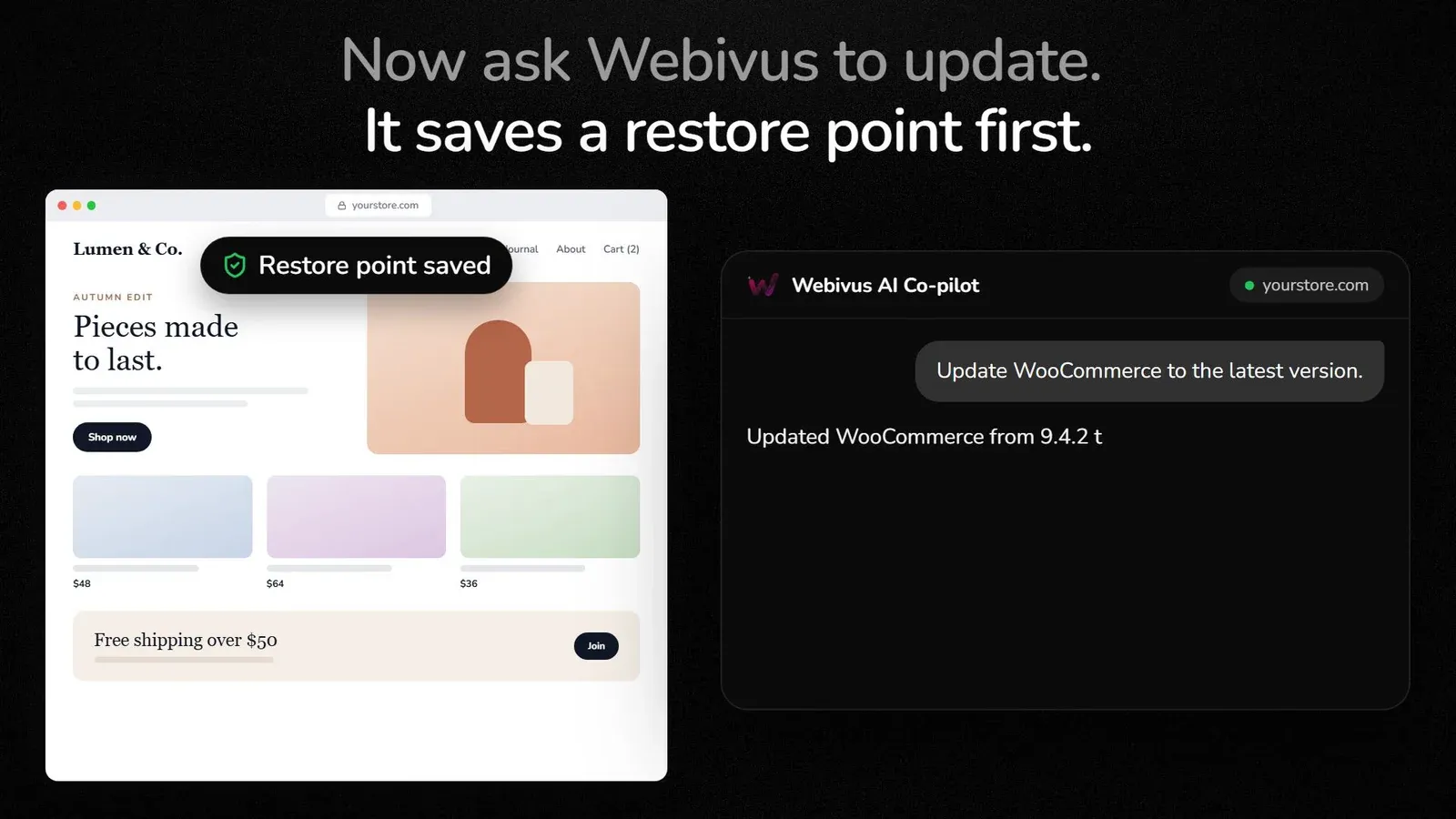
2. Something looks wrong? Click Restore
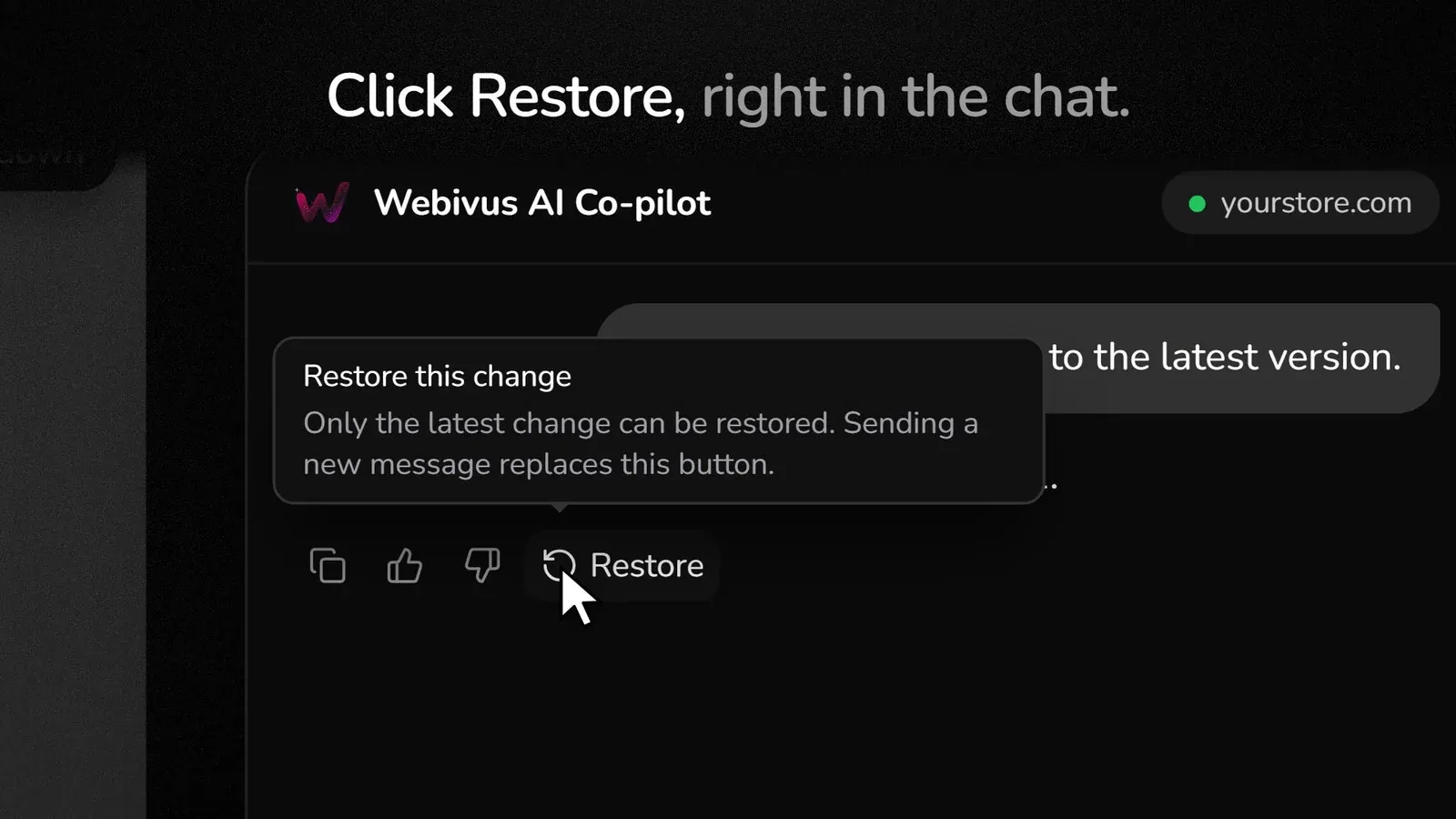
Under the reply that made the change, you'll find a Restore button, next to the copy and feedback buttons. No backup dashboard, no FTP, no support ticket.
3. See what you'd lose, before anything is rolled back
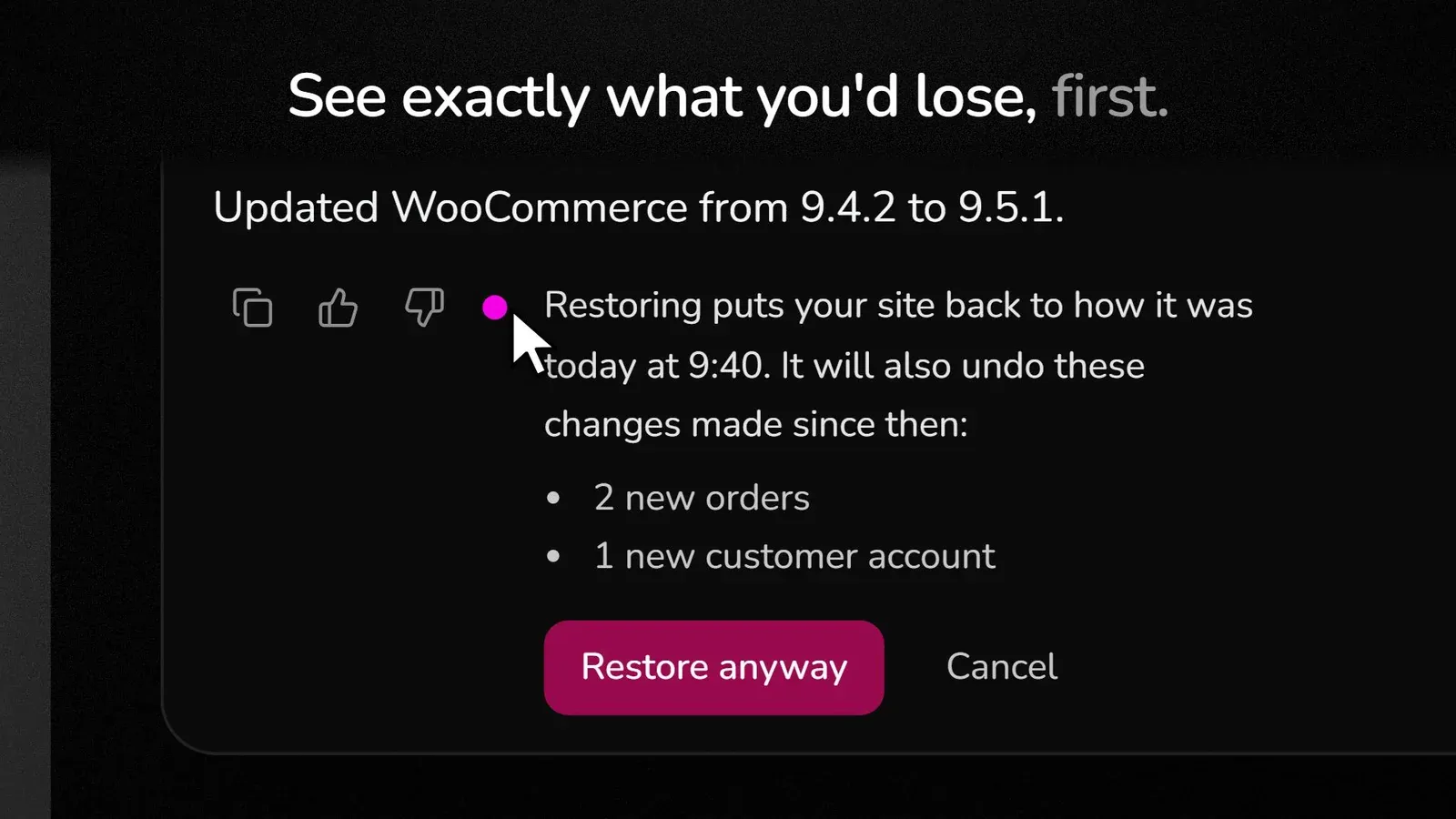
Going back in time can undo good things too. If customers placed orders after the update, restoring would remove them. So before anything changes, Webivus checks what happened on your site since the restore point and lists it: new orders, new customer accounts, new posts or comments.
Then you decide: Restore anyway or Cancel. If nothing would be lost, you simply confirm.
4. Webivus puts it back, step by step
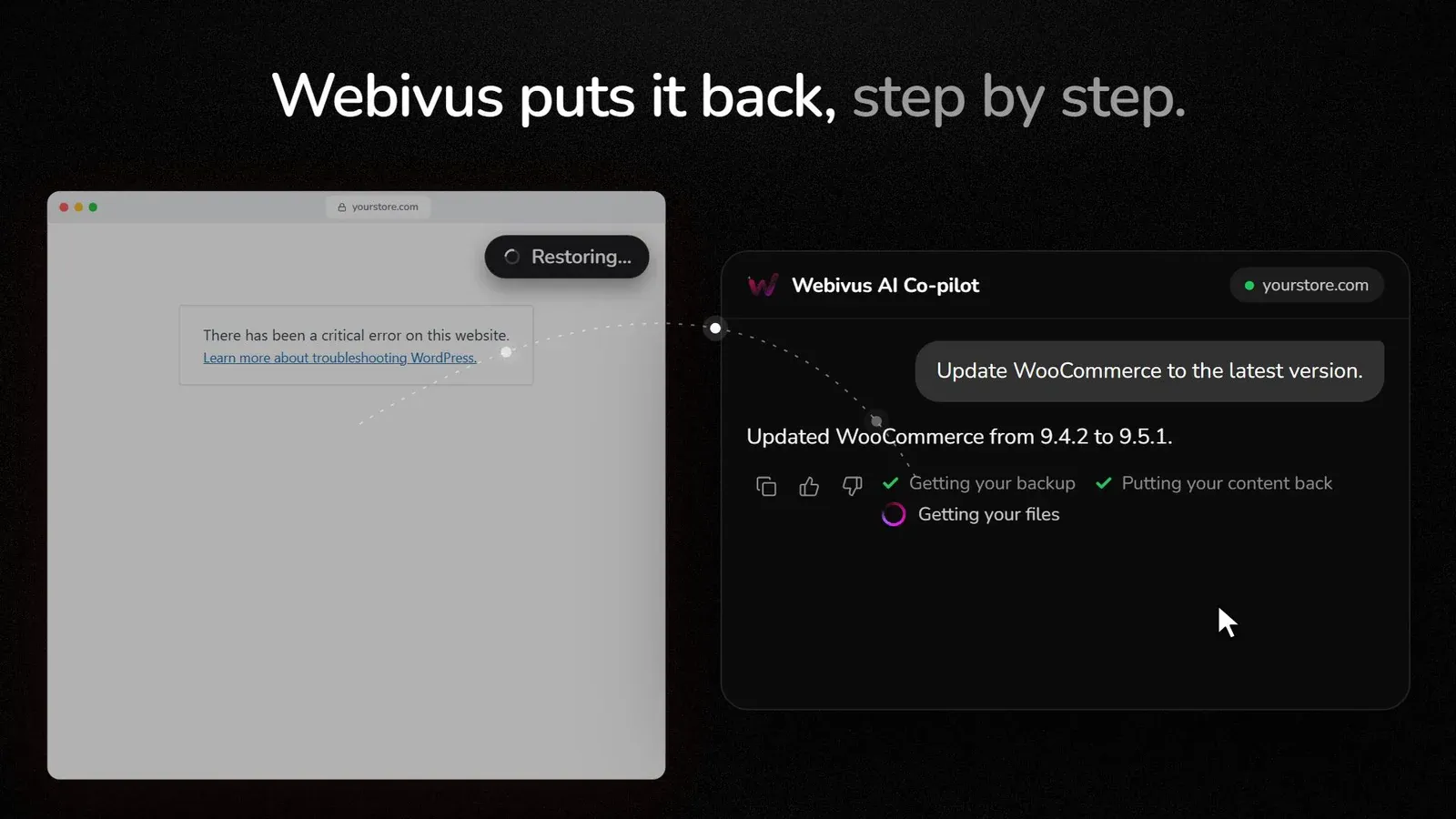
You can watch the restore happen in the chat. When it's done, Webivus checks that your site responds properly, and tells you if it still doesn't.
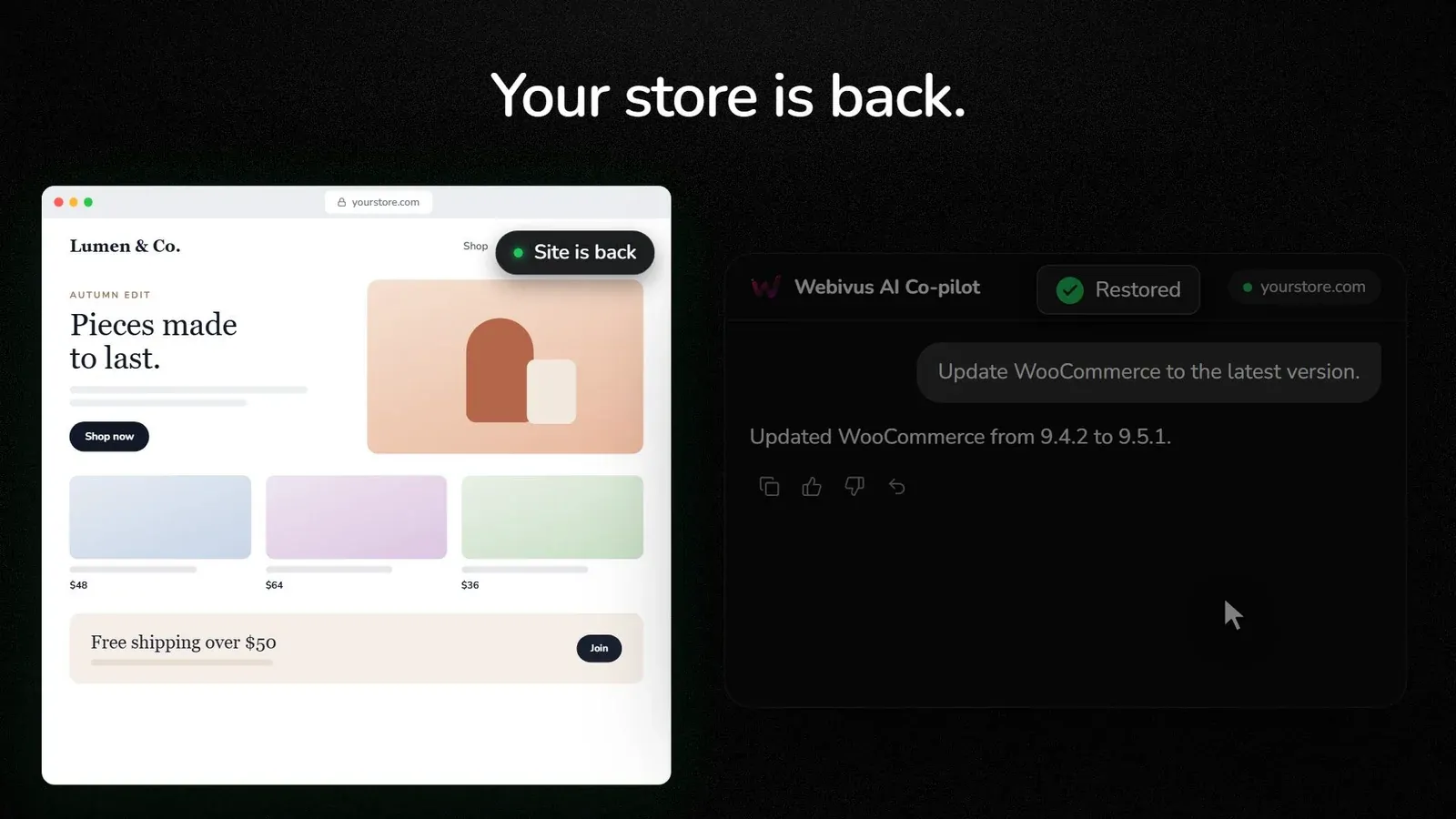
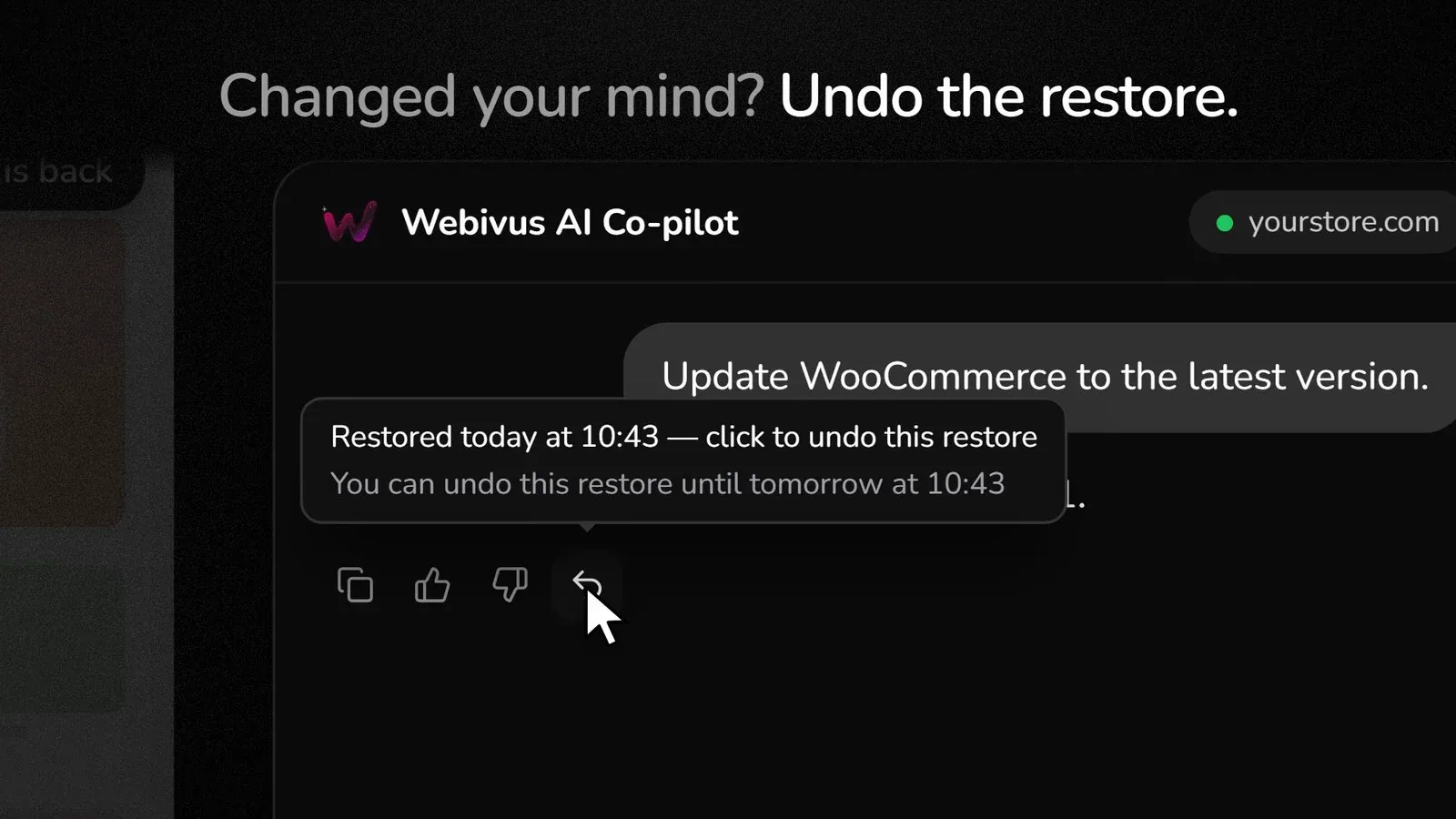
5. Changed your mind? Undo the restore
Restored, then realised the update wasn't the problem after all? For 24 hours after a restore, you can click Undo this restore and your site goes back to how it was before you restored it.
Why not just restore a backup?
Keep your backups. They protect you from disasters Restore isn't built for. But using a full backup to fix one bad update is a heavy tool:
| Restoring a full backup | Webivus Restore | |
|---|---|---|
| Goes back to | Whenever the backup ran, often last night | Right before that one change |
| What you lose | Everything since the backup | Only what happened after the change, and you see the list first |
| Where you do it | Your host's panel or a backup plugin | The chat, under the reply that made the change |
| Can you undo it? | Usually not | Yes, for 24 hours |
So there's no need to restore last night's backup and lose everything since. Restore goes back to right before that one change.
Built to be careful
- No restore point, no update without asking. If Webivus can't save a restore point (for example, because your site runs a Webivus plugin older than 1.3.0), it holds the update and tells you: "I couldn't take a safety backup first." You can try again, or go ahead without a restore point if you choose to.
- Covers the latest change in a chat. The Restore button sits under the most recent reply in a conversation and works for 24 hours. Send a new message in that chat and the older button goes away.
- Private by design. Restore points are stored encrypted and deleted automatically after 30 days.
- Not a full backup. Restore covers the latest change Webivus made. Keep your own backups for everything else.
Manage all your WordPress sites from one place
Webivus isn't only for one site. You can connect several WordPress sites to one Webivus account (how many depends on your plan) and manage them all from the same place, just by chatting. Restore works on each of them, as long as the site runs Webivus plugin 1.3.0 or newer.
Who Restore is for
- Founders who want to keep their site up to date without waiting for a developer.
- Shop owners who can't afford a broken checkout and want to know exactly which orders a restore would touch.
- Freelancers and agencies running client sites, who need a fast way back when an update goes wrong.
How to get Restore
- Make sure your site runs the Webivus plugin 1.3.0 or newer. It's live on WordPress.org.
- Open the chat and ask Webivus to update, install or remove a plugin or theme. The restore point is saved automatically.
Restore is included on every plan, Free too, for a limited time, and clicking Restore doesn't use any credits. See plans and pricing.
Want the full walkthrough, with tips for using it well? Read How to undo a WordPress plugin update that broke your site.
Frequently asked questions
Is Restore a backup?
No. Restore saves a restore point right before Webivus changes a plugin or theme, so you can undo that one change. It isn't a full backup of your site, so keep your own backups too.
Which changes get a restore point?
Updating, installing or removing a plugin or theme through Webivus. Changes you make yourself in wp-admin, automatic updates and updates run by your host don't get a Webivus restore point.
How long do I have to restore?
24 hours, and it has to be the latest change in that chat. If you want to do something else before checking your site, start a new chat: the Restore button stays on the original reply.
Will restoring delete new orders?
It can, if they came in after the update. That's why Webivus lists new orders, customer accounts, posts and comments before you confirm.
Does Restore cost extra?
No. It's included on every plan, Free too, for a limited time. Clicking Restore doesn't use credits.
What do I need to use it?
A Webivus account and the Webivus plugin 1.3.0 or newer on your site.
Ready to update without the fear? Try Webivus free.